Since WSL2 became available, I decided to try Docker on Windows too. When Docker Desktop is installed, it automatically creates its virtual environment on the C drive. My C drive started running low on free space, so I moved the Docker environment to the D drive.
Test Environment
Windows 10 Pro 2004 OS build 19041.329
Docker Desktop community 2.3.0.3
WSL2 (Windows Subsystem for Linux)
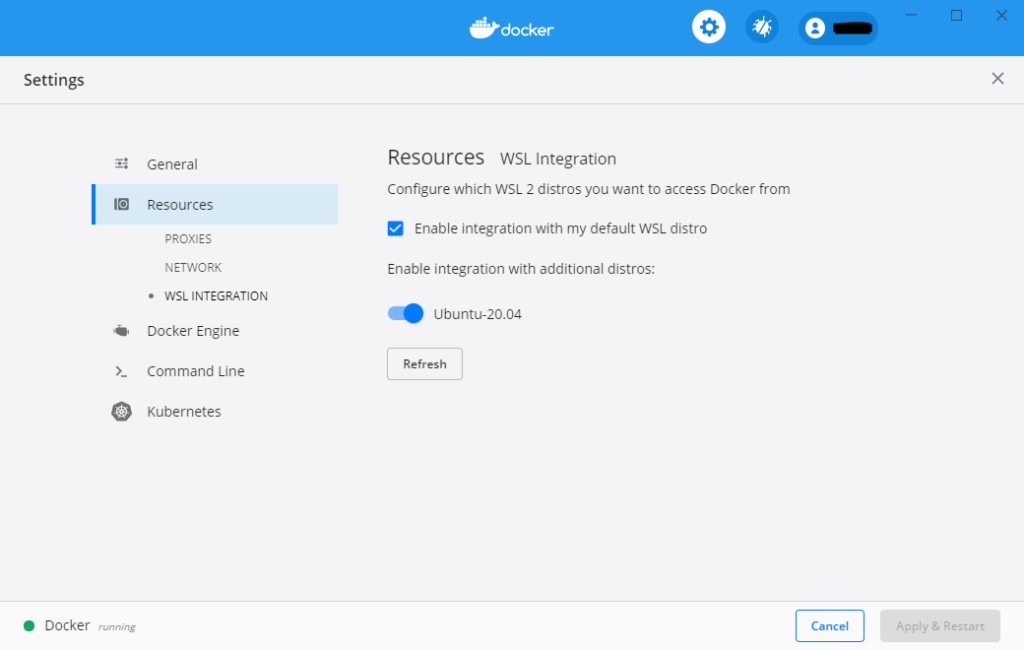
In Docker Desktop settings, I have WSL2 Integration enabled. Since I use Ubuntu 20.04 as the WSL distribution, integration with that distribution is also enabled.
Method
The WSL distribution used by Docker Desktop, docker-desktop-data, is on the C drive and consumes disk space, so the approach is to export it once and then import it on the D drive.
> wsl --list
Linux 用 Windows サブシステム ディストリビューション:
Ubuntu-20.04 (既定)
docker-desktop-data  ←←←← これを移動します。
docker-desktop
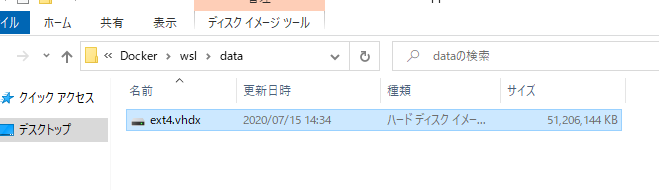
The actual disk image is located at %LOCALAPPDATA%\Docker\wsl\data\ext4.vhdx.
Procedure
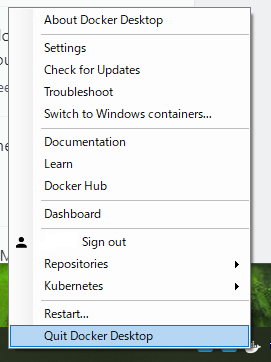
Stop Docker Desktop.
Stop the WSL distributions from Command Prompt.
> wsl --shutdown> wsl -l -v
NAME STATE VERSION
* Ubuntu-20.04 Stopped 2
docker-desktop-data Stopped 2
docker-desktop Stopped 2Export docker-desktop-data to a tar file. This takes a little time.
wsl --export <distribution> <file name>
> wsl --export docker-desktop-data D:\Docker\docker-desktop-data.tarext4.vhdx was over 50GB, but the exported docker-desktop-data.tar was 11GB.
Unregister the distribution.
> wsl --unregister docker-desktop-dataImport the tar file you exported. The command argument specifies the installation location; set this to a drive with plenty of free space, such as the D drive.
The option specifies the WSL version, but if the default is WSL2, you do not need to specify it.
wsl --import <distribution> <installation location> <file name> [options]
> wsl --import docker-desktop-data D:\docker-desktop\data D:\Docker\docker-desktop-data.tarThat is the whole procedure.

There is nothing especially difficult here.