I use Ubuntu and CentOS with VirtualBox + Vagrant. Sometimes I need to edit files such as Java, JavaScript, or CSS files, and installing Emacs in a VM just for that felt tedious. Even if installed, an unconfigured Emacs does not feel very good to use.
Configuration
To edit files remotely from Emacs, use a mechanism called TRAMP. If the environment is accessible over SSH, you can edit files with the same feel as editing local files on Windows.
Recent versions of Emacs can use Tramp by default, so configure .emacs or init.el so that Tramp uses plink.
;; plink コマンドを実行するように
(setq-default tramp-default-method "plink")
Confirm that you can connect to the target Linux machine with Putty (SSH), and make sure the PLINK command is on PATH. If you want to connect without a password, save the session in Pagent.
Usage
All you need to do is use Tramp's format for the path specified in Dired.
C-x C-f /plink:vagrant@localhost#2222:abc.txt
# /plink:USERID@HOSTADDR#PORT:PATH_TO_FILE
You can also open directories. Copying and renaming work with normal Dired operations.
C-x C-d /plink:vagrant@localhost#2222:/home/vagrant
# /plink:USERID@HOSTADDR#PORT:PATH_TO_DIRECTORY
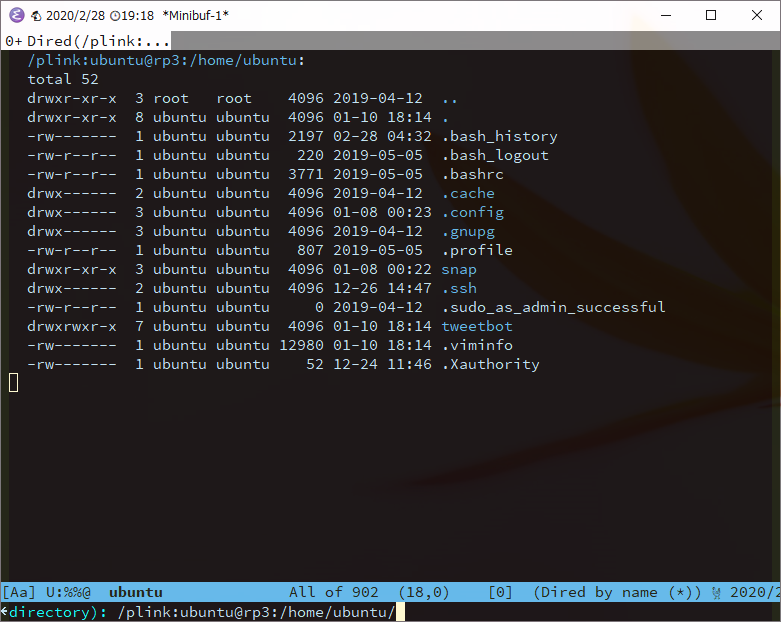
If you saved a session in Pagent, you can access it by session name. If you configure a public key in advance, you can skip password entry. The directory path can also be omitted; when omitted, the home directory opens.
C-x C-d /plink:ubuntu@rp3:
# /plink:USERID@PAGENT_SESSION_NAME:[PATH_TO_DIRECTORY]
Test Environment
Windows 10 Pro
GNU Emacs 26.3 (build 1, x86_64-w64-mingw32) of 2019-11-12
tramp-version 2.3.5.26.3
Putty Release 0.73
Ubuntu 19.10 eoan (connection target)

It is convenient that it reads the Pagent settings. Logging in over SSH and launching Emacs there is a completely different experience from using your everyday Emacs.