Notes on switching keys on the WENRUI mechanical keyboard.
Overview
I use a mechanical keyboard sold as the "WENRUI Mechanical Keyboard", but inside it is a ROYAL KLUDGE RK61.
I always forget how to switch the special keys, so this is a memo.
This is a memo for my own use, so see the manual for details. https://rkgamingstore.com/pages/software
Connection-Related Settings
It supports five connection paths: wired, dongle, and Bluetooth x3. Wired and dongle are physical connections, but for Bluetooth there are key bindings for connection and switching. *Set the switch on the back to B for Bluetooth mode.
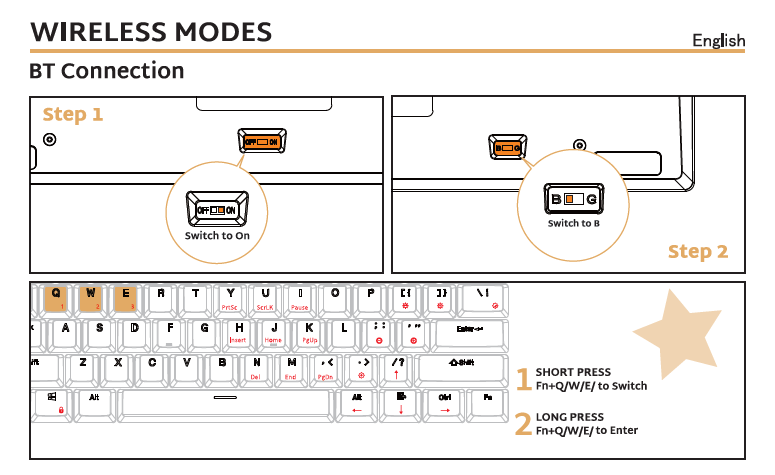
Connecting a New Device
Press and hold Fn + Q: put Bluetooth 1 into pairing mode.
Press and hold Fn + W: put Bluetooth 2 into pairing mode.
Press and hold Fn + E: put Bluetooth 3 into pairing mode.
Switch Connection Destination
Fn + Q: connect to Bluetooth 1.
Fn + W: connect to Bluetooth 2.
Fn + E: connect to Bluetooth 3.
If you press briefly instead of holding, the connection destination switches. It switches quickly and smoothly, so it is convenient when using multiple PCs.
Pairing Mode
Press and hold Fn + P: pairing mode? (Behavior not confirmed.)
Cursor Keys Left/Up/Down/Right and Half-width/Full-width (Japanese Input)
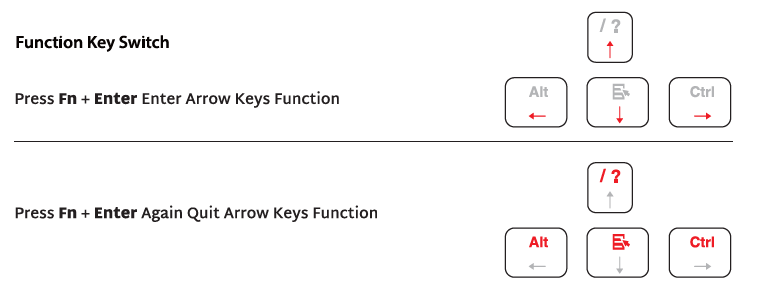
I use the arrow-key switch often. The / (slash) key overlaps with the up arrow, so it is inconvenient if you do not know this. Ideally, I would like to use the arrow keys without switching modes.
Arrow Key Mode
Fn + Enter toggles arrow mode on/off. When the mode switches, the keyboard LEDs blink.
Japanese Input
Fn + Alt + Esc toggles Japanese input on/off. It behaves the same as pressing the Half-width/Full-width key. Either the right or left Alt key is OK.
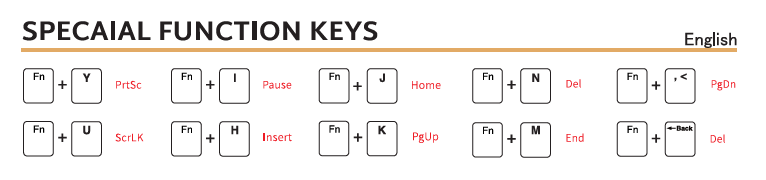
PrintScreen and Similar Keys
The keytops are printed, so there is no need to memorize them.
Function Keys and Multimedia Keys
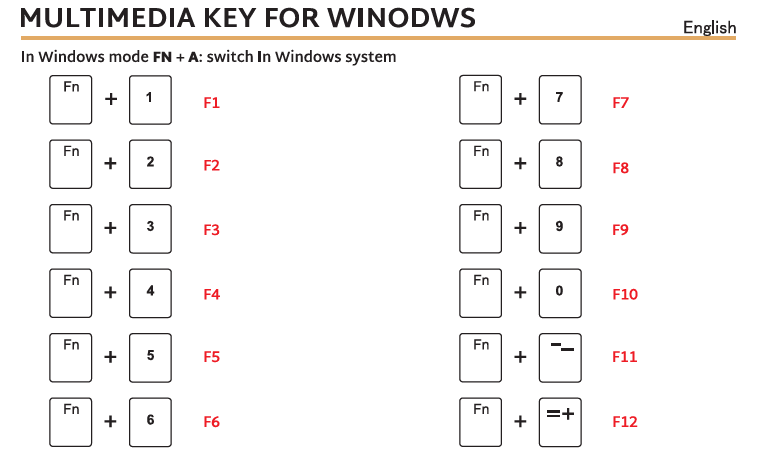
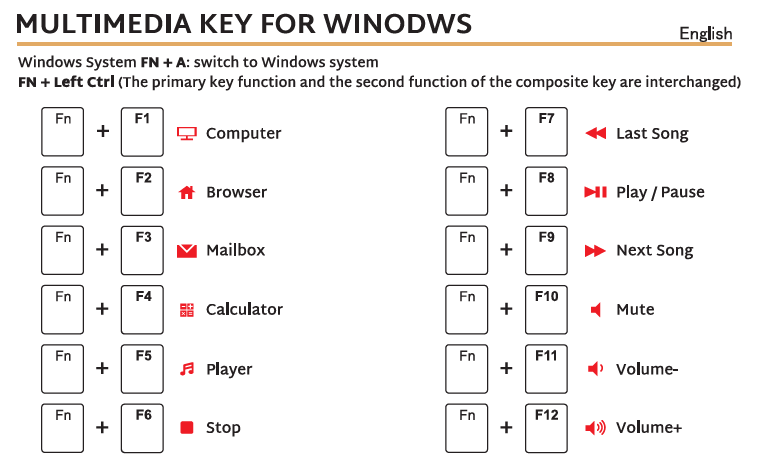
You can change what happens when pressing Fn + the top-row number keys.
F1-F12 Mode
Fn + A switches to function key mode.
Multimedia Key Mode
Fn + Left Ctrl: multimedia mode. You can launch the mail app, raise or lower the volume, and so on.
Light Patterns, Brightness, and Similar Settings
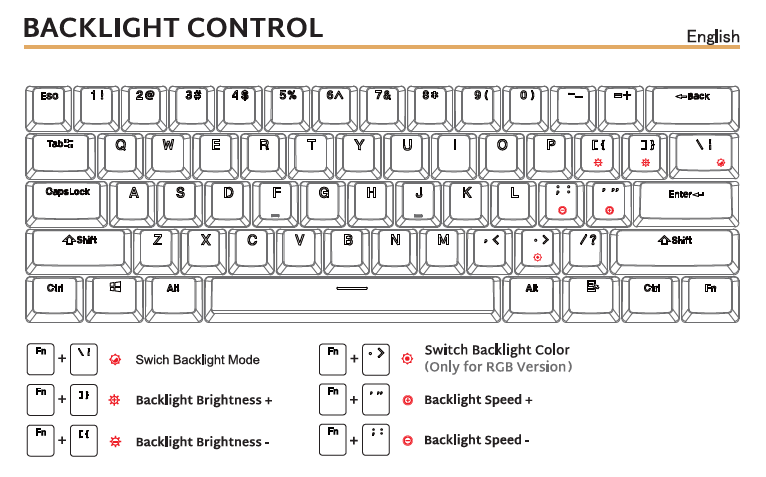
You can configure light patterns, speed, and similar settings. They are printed on the keytops, so you do not need to memorize them, but the meaning of the marks is hard to understand.
Other Notes
Fn Key Lock
Fn + Alt + Left Ctrl: Fn key lock?
I could not find this in the RK61 manual, but it seems to put the keyboard into a state as if Fn is being held down. Sometimes it does not switch unless you press it fairly firmly, around one second.
Occasionally, I could not type the Y or U keys, and it looks like this Fn key lock state was the cause.
Disable Win Key
Fn + Win (lock mark): disable/enable the Windows key. Is this necessary?
Swap the Win Key and Alt Key
Fn + s: make Alt the Win key.
Fn + a: return it to the Win key.
It seems Fn + a is Win mode and Fn + s is Mac mode. If Japanese input does not switch, the Alt key may have been swapped.
Reset Settings
Press and hold Fn + Space: reset settings.
If nothing else works, trying a reset may be worthwhile.
Also, the detailed behavior seems to vary depending on the firmware, so if you are curious, check that too. You can also update the firmware with the tool for customizing the key layout.

It has some quirks, but I like the typing feel.